What Chico holds, and how to take it or delete it.
Deleting your account#
Settings › Account › Delete my account. It closes your account and takes you out of the family.
The family and its records stay, because they belong to everyone in it. If you are the last person, tell me and I will remove the family too.
Shopping for the week#
Meals › Shopping takes the meals you have planned and works out what you actually need to buy. The slider picks how far ahead: today only, or the next 3, 5 or 7 days.
Ingredients are added up rather than repeated. If Bolognese wants a cup of pasta and Carbonara wants a cup, that is one line saying 2 cups, with both meals named underneath so you can see where it came from. A whole onion in one recipe and a quarter in another comes to 1¼ onions.
Everything starts as Need to buy. Walk the list tapping In stock on the things you already have — that way a row you never got to is still on the list at the end, which is the mistake worth avoiding.
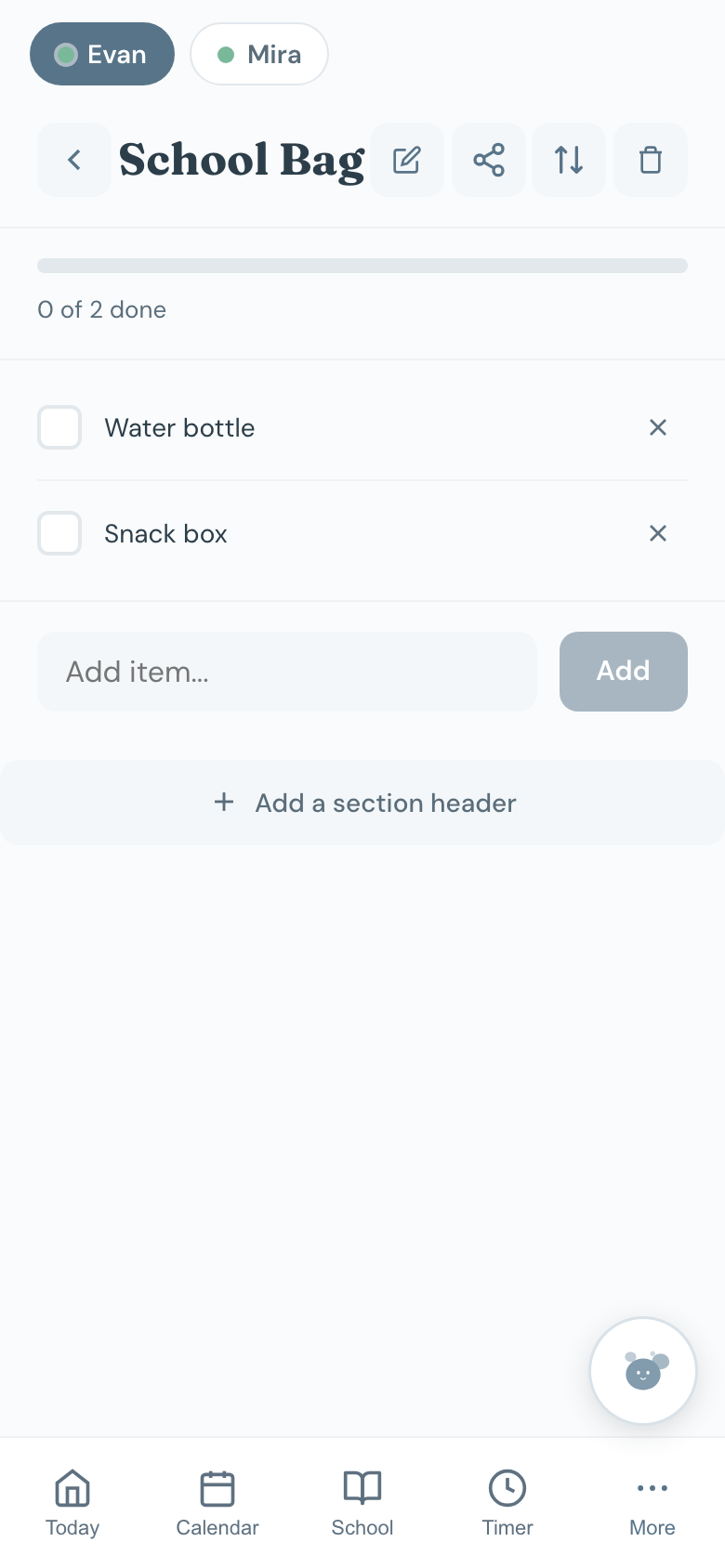
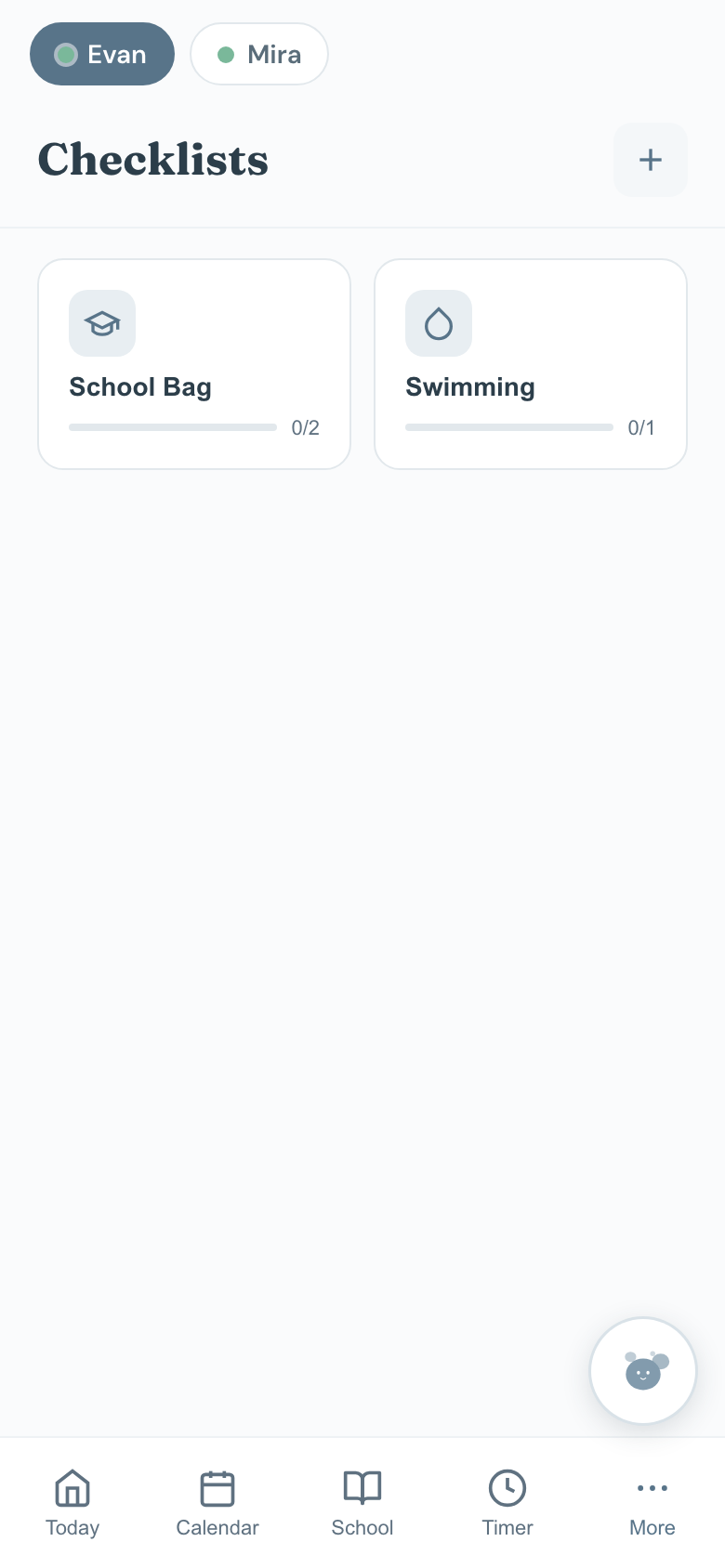
Then Copy list to paste it into a message, or Make a list to put it in Lists as “Grocery shopping for” today, with the aisles as headings, so you can tick it off in the shop.
Ingredients are sorted into aisles. Anything Chico does not recognise goes to Other at the end rather than being guessed into an aisle — a wrong aisle sends you to the far end of the shop for nothing. Two spellings of the same thing are treated as one, but “onion” and “yellow onion” stay separate, because a red onion is not a spring onion and merging them would be worse than listing both.
Google Calendar#
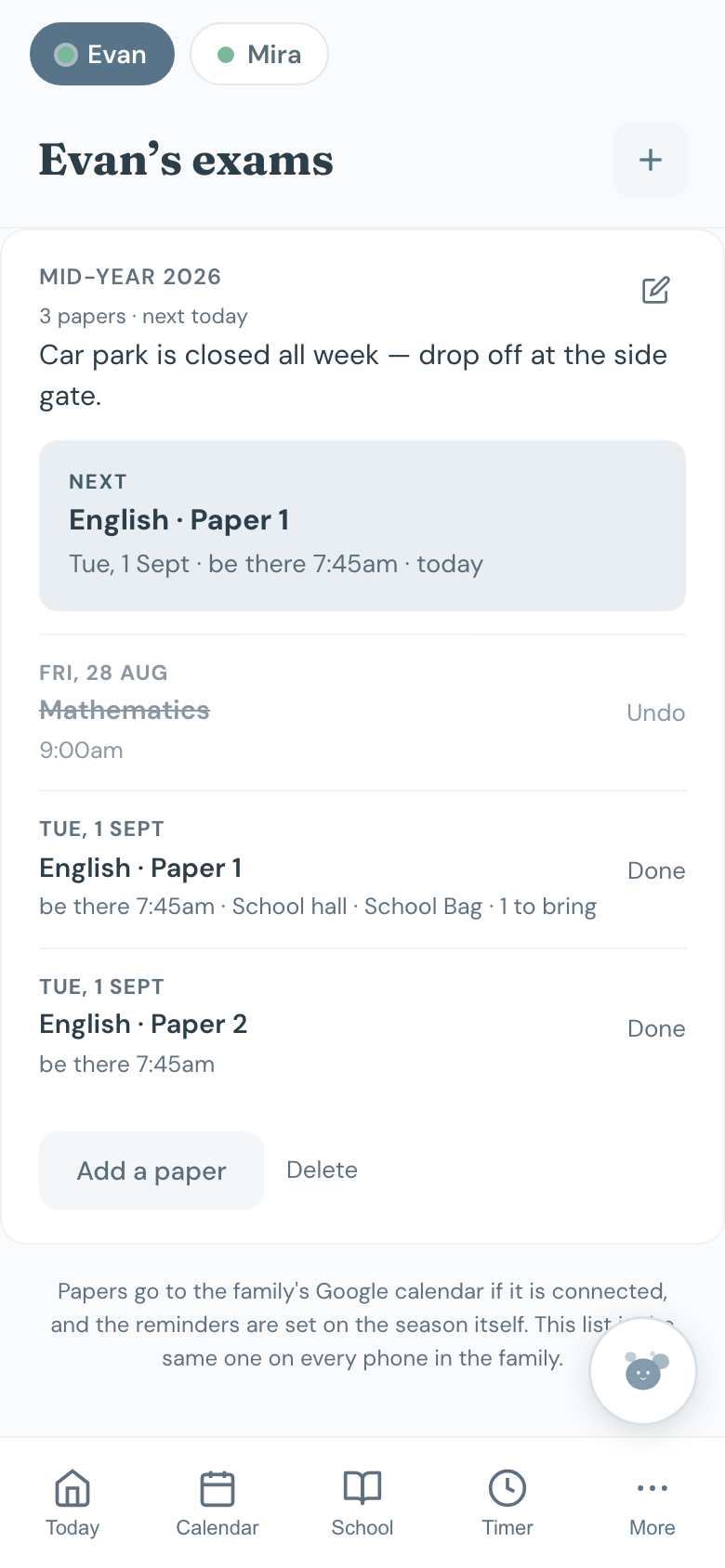
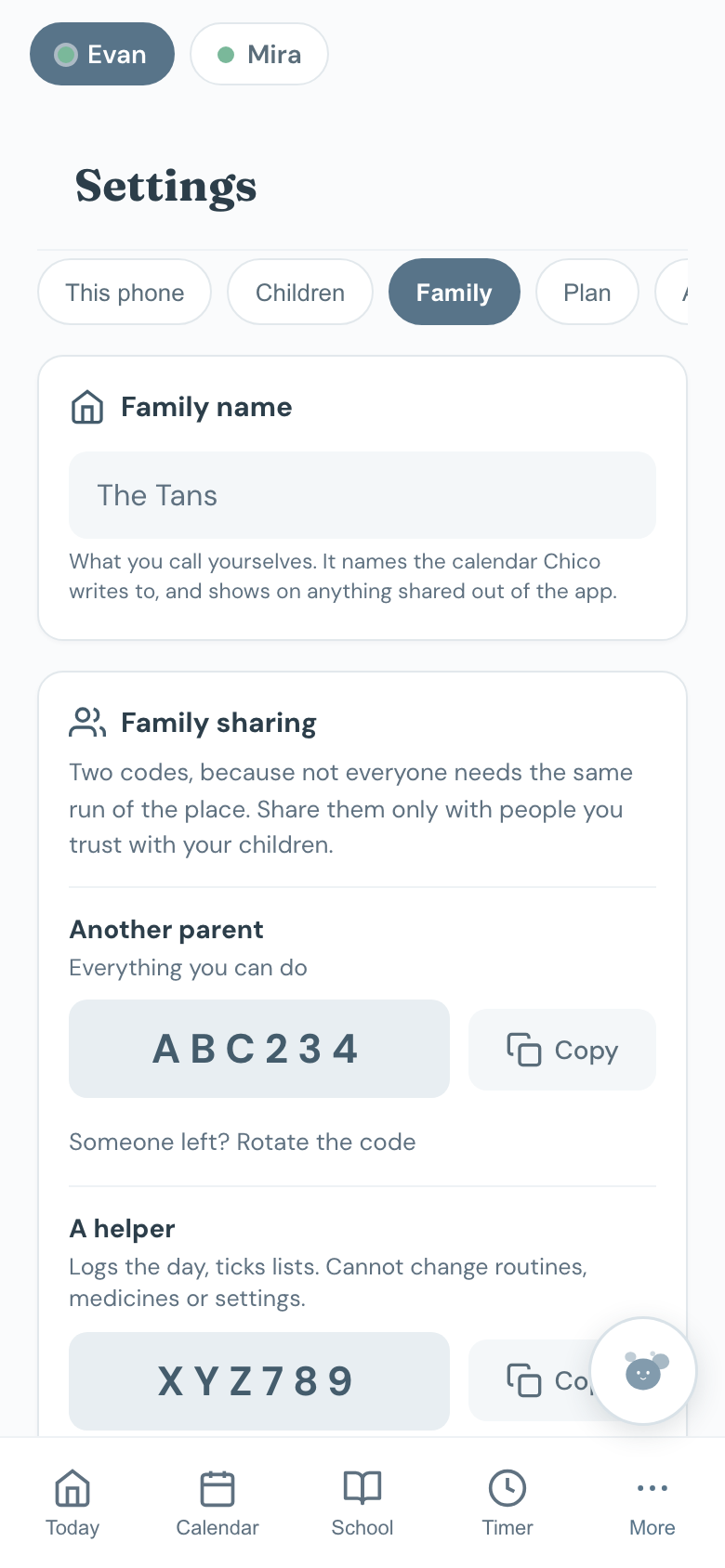
Settings › Family › connect Google Calendar and Chico puts school items, activities, exams and meal plans into a calendar of its own, named for your family, alongside the ones you already have. Each child gets their own colour and their name on each entry.
It goes one way. Chico writes into that calendar; it does not read yours.
Two switches sit under the connection. Dated things — school, activities, exams, meal plans — is on to start with. Routines is off, because it fills a calendar: every row of every day, repeating week after week.
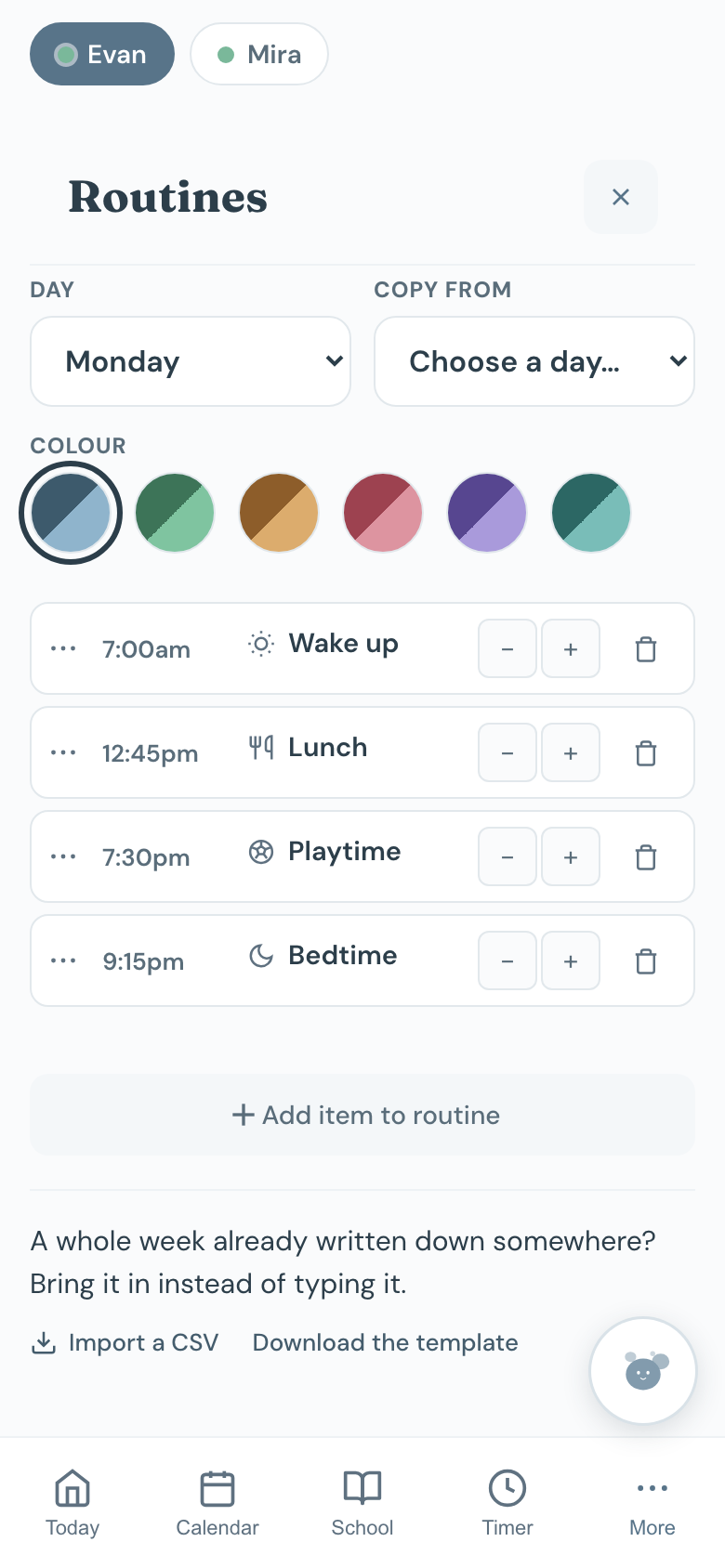
Switch routines on and each day’s routine goes in as a weekly repeat in the child’s colour. Monday to Friday on the same routine becomes one entry across five days, not five. They are marked free rather than busy, so they do not make you look booked all day, and Google’s own alerts are off on them so you are not told twice.
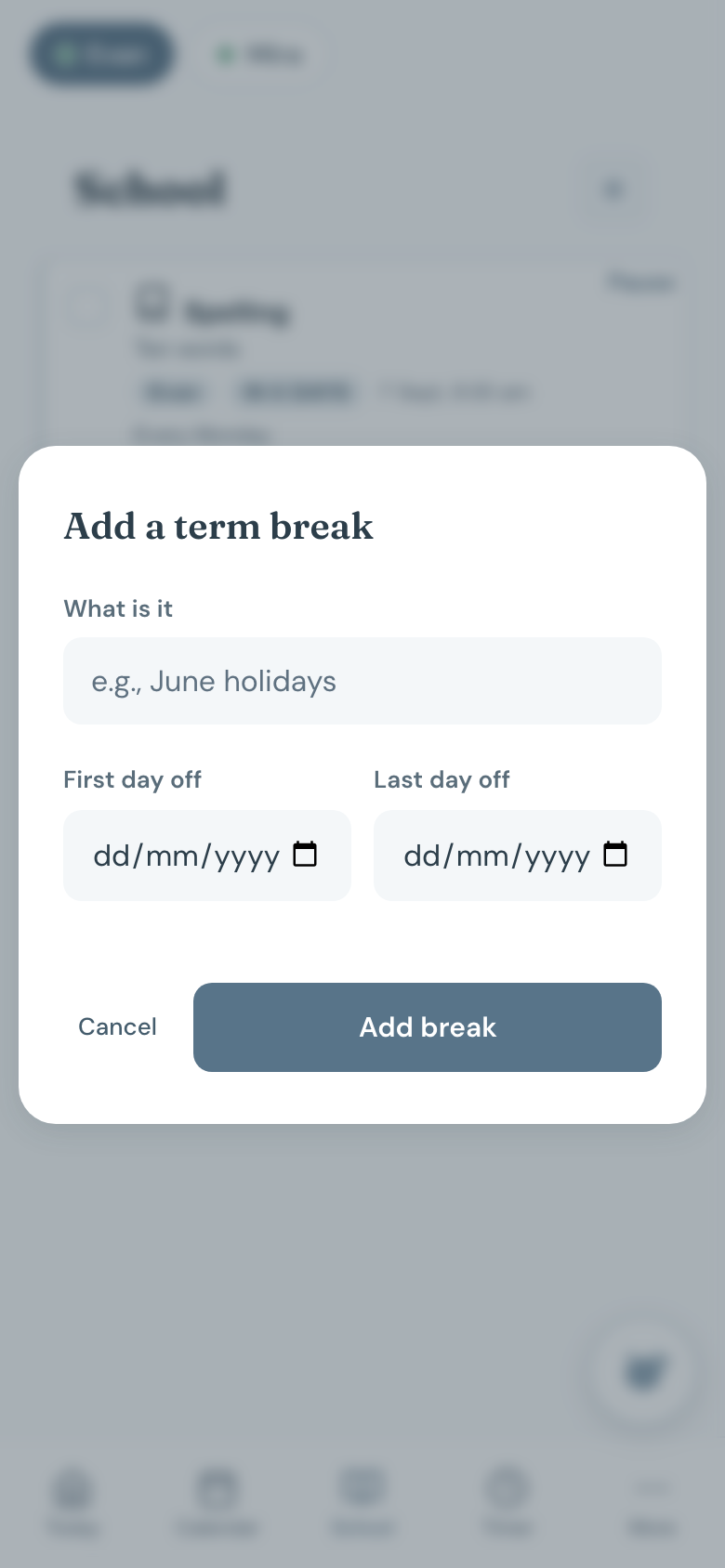
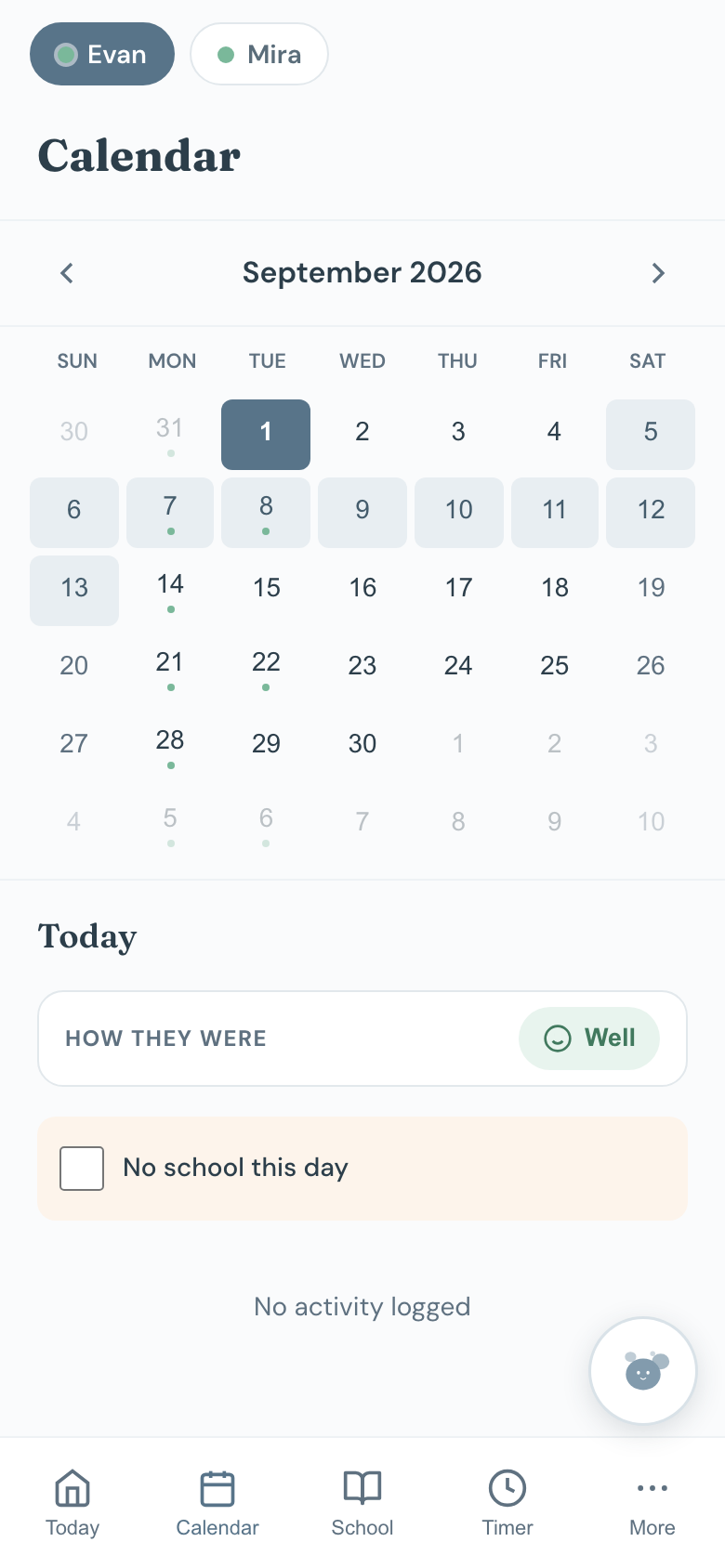
Holidays, term breaks and days you have ticked as no school follow the rest-day routine in Google, the same as they do in Chico.
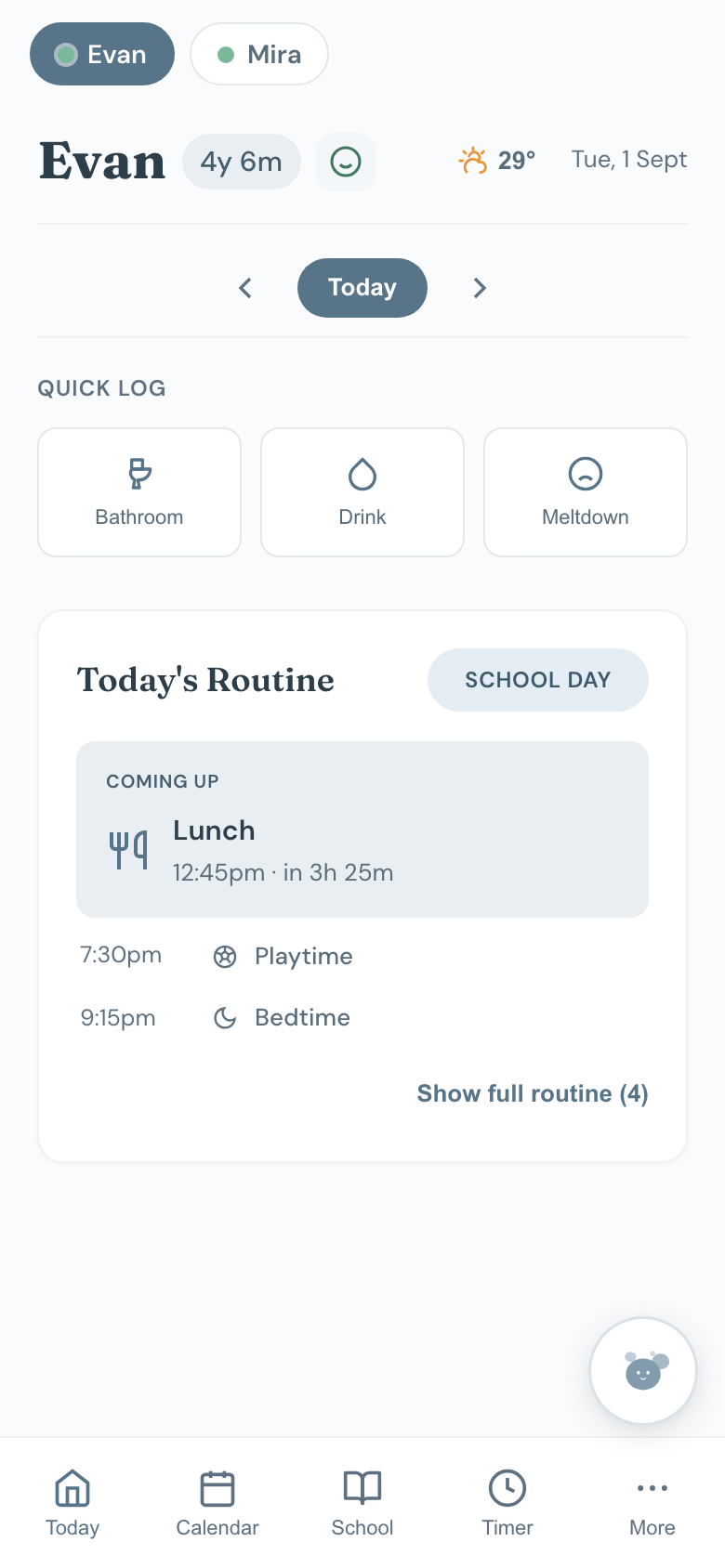
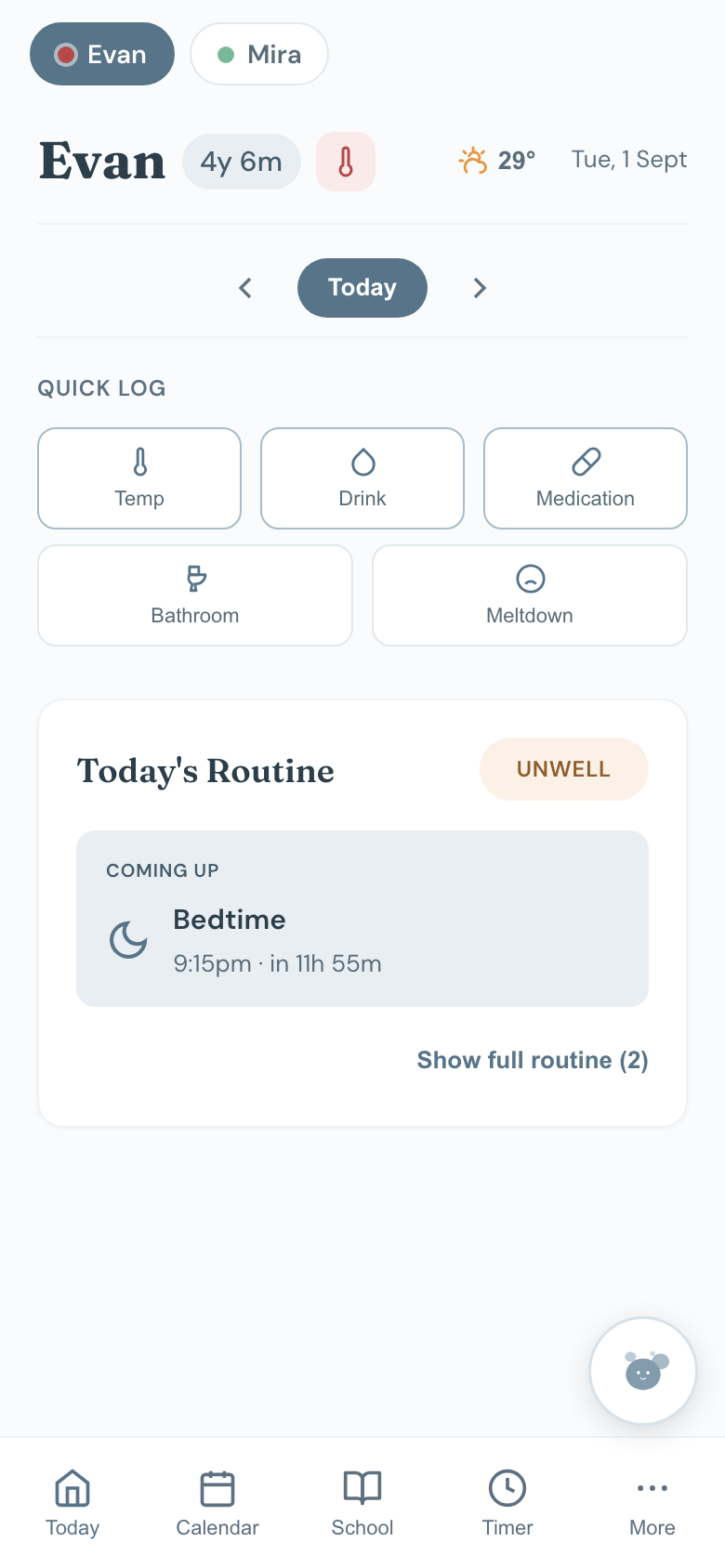
Sick days go in as well, one day at a time. Mark a child unwell and today swaps to the rest-day routine in Google too. Tomorrow is left as an ordinary school day, because you do not know yet — if they are still unwell in the morning Chico moves that day over as well, at 4am, and keeps doing it until you mark them well. Mark them well and the day goes straight back to normal.
 Chico
Chico